My dual-computer ergonomic desk setup: what actually made working all day more comfortable
A practical dual-computer home-office setup using two monitors, a hardware monitor switch, Logitech ERGO K860 keyboard, two vertical mice, a TP-Link Wi-Fi adapter and a large desk mat. The biggest improvements came from removing small daily frustrations rather than adding technology for its own sake.
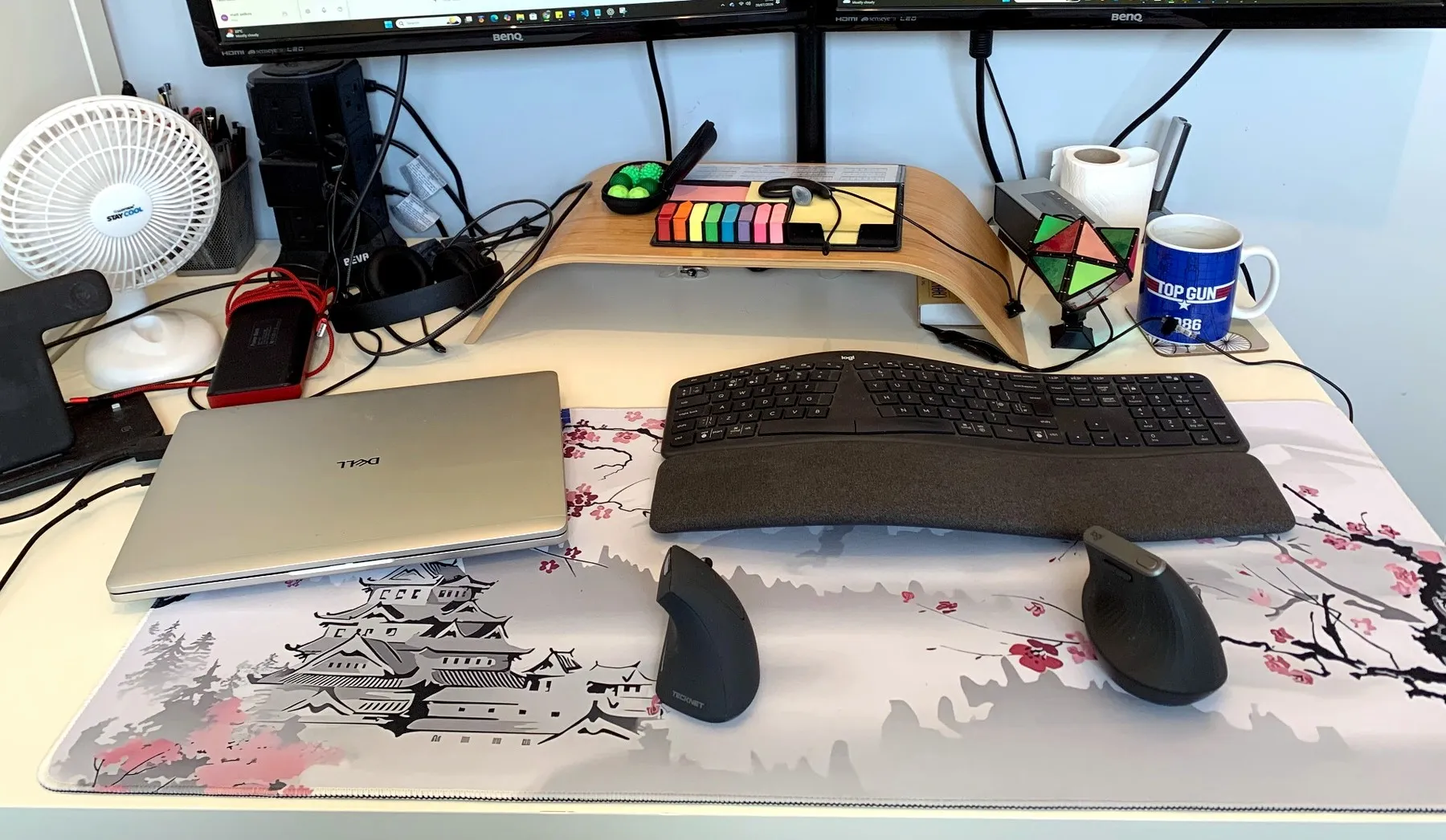
I have worked from home since around 2011, which means my office setup has had roughly fifteen years to evolve from “desk with a computer on it” into something approaching a small control room.
It contains two computers, two monitors, two vertical mice, several headsets, a curved ergonomic keyboard, a monitor switch, a very large Japanese-style desk mat and enough cables to suggest that at least one important government department operates from the spare bedroom.
It has taken years of buying, replacing, rearranging and occasionally wondering why nothing is connected to the thing it was connected to yesterday.
But it now works extremely well.
Two computers, one working day
The laptop is for work. The desktop is for personal use.
Both are usually switched on, and I move between them regularly throughout the day. This is partly because work and personal projects increasingly overlap in practical terms, even when the actual information remains separate.
I might be working on the laptop, checking something personal on the desktop, returning to the laptop and then switching back again several minutes later.
This is much easier when both computers are permanently available. I do not dock and undock anything or shut one machine down before using the other. They sit there waiting for me to remember which one contains the thing I was looking for.
The monitor switch is the clever part
The two monitors are connected through a hardware switch.
This lets me use:
- Both monitors with the work laptop
- Both monitors with the personal desktop
- One monitor for each computer
The arrangement depends on what I am doing. When one computer has the majority of my attention, it gets both screens. When I need to work across both machines, each gets one.
The little switch has made a surprisingly large difference. It gives me the flexibility of a much more elaborate setup without requiring a desk covered in additional monitors.
Before this, each screen largely belonged to whichever computer happened to be connected to it. Now the monitors work for whoever currently has the strongest business case.
It is probably the most useful small gadget in the whole office.
The Wi-Fi adapter was another small upgrade with a large effect
For years, I relied on the basic Wi-Fi adapter I already had. It functioned, in the same way that a shopping trolley with one damaged wheel technically still transports shopping.
In January 2026, I replaced it with a TP-Link Archer TX20UH AX1800 USB Wi-Fi 6 adapter. It connects to the desktop by USB and sits separately on its cable, rather than being trapped behind the computer case attempting to communicate through a desk, a wall and several years of accumulated wiring.
The difference has been excellent. It is one of those upgrades that does not make the office look dramatically more impressive, but quietly makes everything behave more reliably.
I spent years accepting the previous arrangement because it more or less worked. The TP-Link has demonstrated that “more or less working” is not actually the highest standard available.
I have reviewed the TP-Link Archer TX20UH separately after several months of regular home-office use.
The Logitech ERGO K860 keyboard
I have used the Logitech ERGO K860 since November 2025.
I have reviewed the Logitech ERGO K860 separately after using it for long working days.
Its most important feature is not the unusual curved shape or the split keys. It is the large padded wrist rest.
Before using it, my wrists regularly ached during long periods at the computer. Since changing keyboards, that discomfort has stopped.
That alone makes it worthwhile.
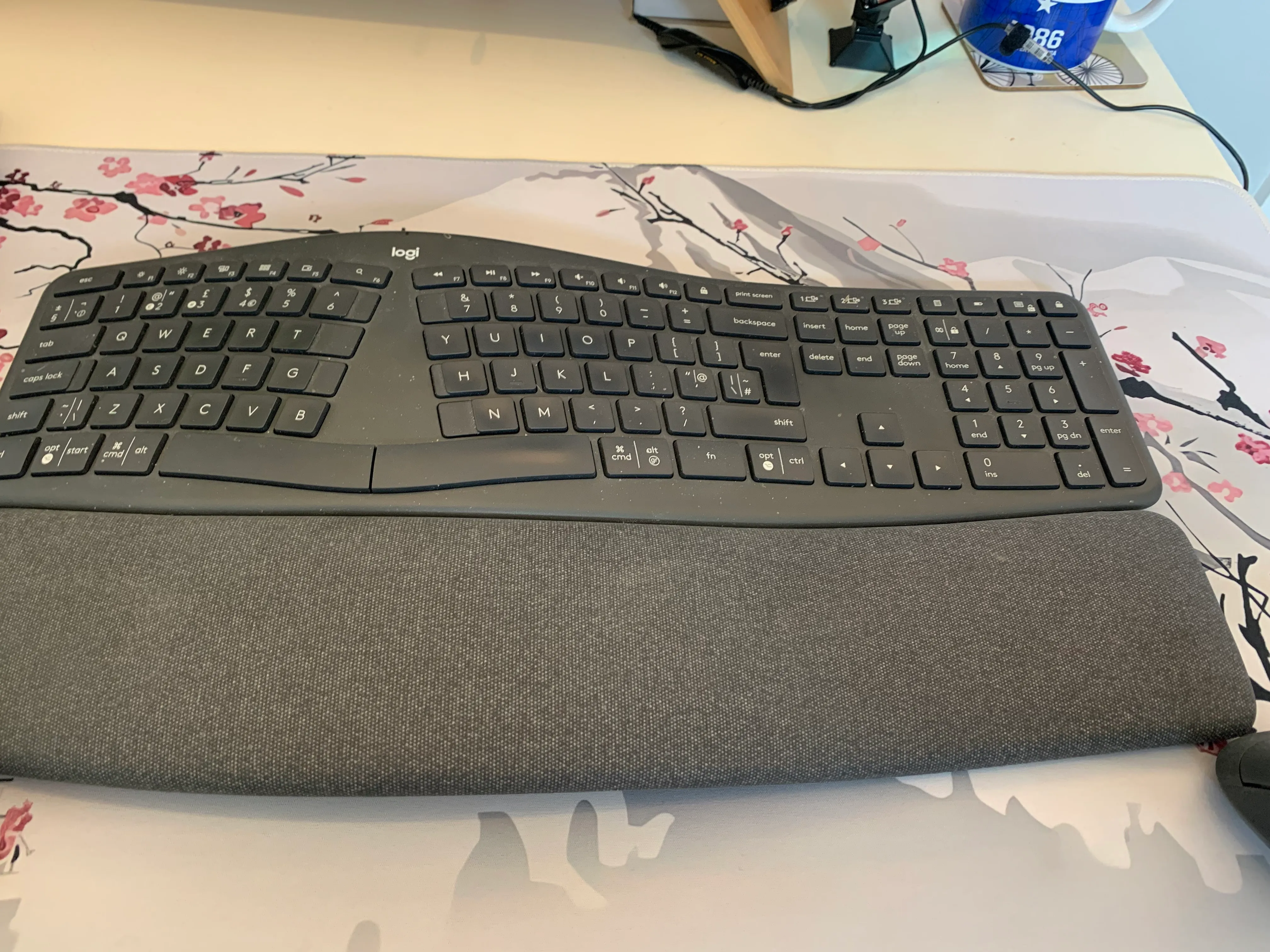
The split layout has also improved my touch typing. The two halves encourage each hand to remain on the correct side instead of allowing one particularly ambitious finger to wander across the keyboard doing everybody else’s work.
I have become faster and more accurate with it than I was on a conventional keyboard.
There is only one ongoing problem: I repeatedly press Caps Lock instead of the letter A.
This is not an occasional accident. My left little finger appears to believe that random capitalisation adds authority.
Apart from that, the layout now feels completely natural.
The large desk mat made the biggest immediate difference
The large Japanese-style desk mat was bought to replace a smaller black one.
The old mat had begun to look worn and marked, and it only provided enough useful space for one mouse. That became increasingly inconvenient once I started using two computers and two mice together.
The replacement covers most of the working area of the desk. Both mice, the keyboard and the computers can share one continuous surface.
This means I can move from one computer to the other without having to relocate equipment or persuade a mouse to operate on the bare desk.
It also looks considerably better than the old black mat, which had reached the stage where every mark appeared to be part of a permanent archaeological record.
Of all the recent changes, the mat has made the greatest immediate practical difference. It is simple, inexpensive compared with the larger equipment and used every minute I am at the desk.
I have reviewed the Yimomoyi extended desk mat separately after using it daily with both computers.
Two vertical mice
I use a Logitech MX Vertical and a cheaper TECKNET vertical mouse.
Both remain on the desk, one assigned to each computer. Whichever machine I expect to use most that day gets the Logitech.
Changing them between computers requires moving the small USB receivers, but I generally only do that once at the start of the day. It is not enough of an inconvenience to justify adding yet another switching device.
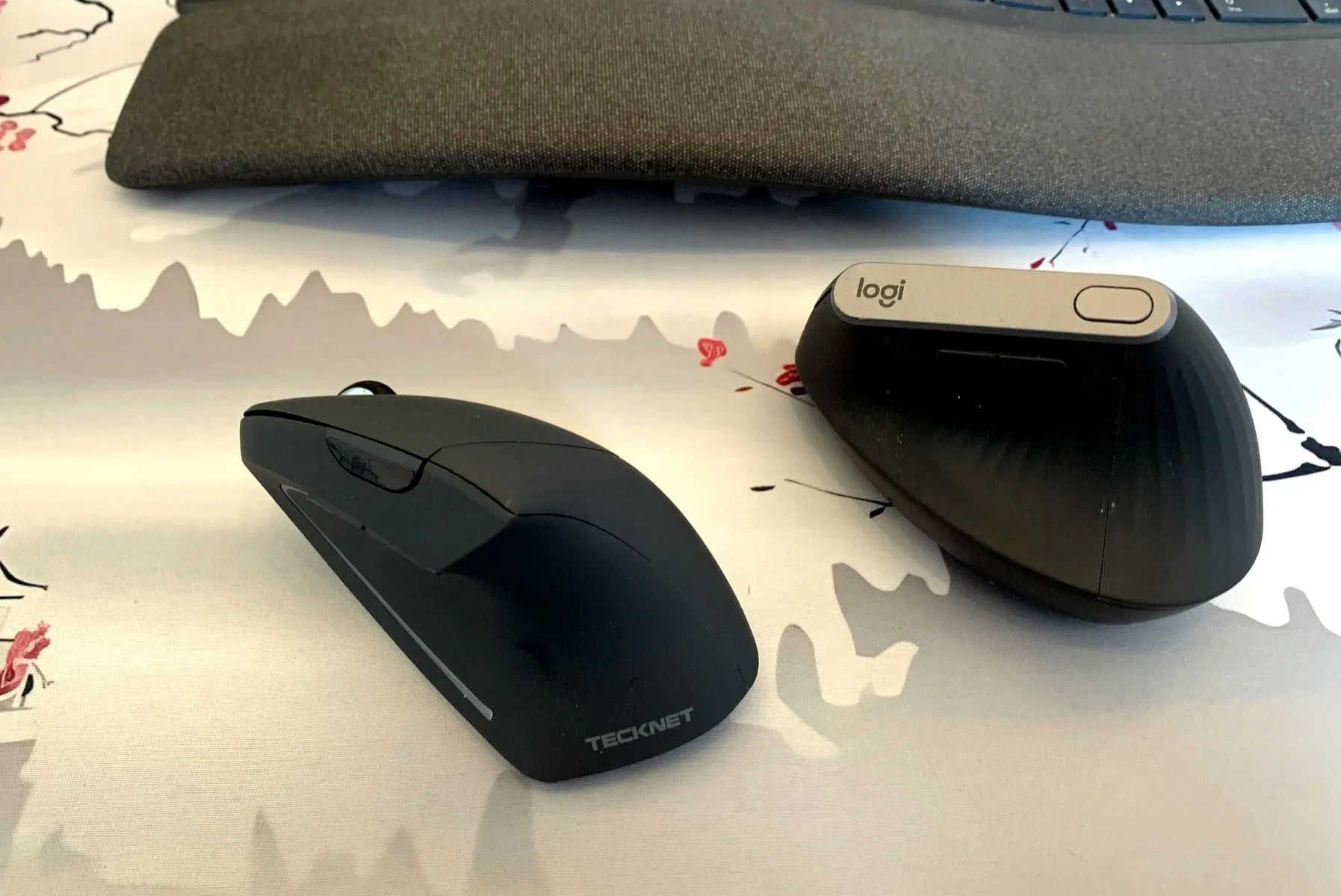
The Logitech remains the much better mouse, particularly for my larger hands, but having both available means I can move immediately between computers.
The full comparison is available in my Logitech MX Vertical vs TECKNET vertical mouse review.
A proper office makes working from home feel like work
I did not create the office because of a particular injury or sudden need. It has gradually developed during many years of home working.
The biggest advantage is simply having a permanent workspace.
The desk is at the correct height. I have a good chair. The monitors remain where I need them. Everything is ready when I start work and still there when I return the following morning.
I do not have to work from a kitchen table, clear everything away for dinner and rebuild the office before breakfast.
Having a dedicated room is a luxury, but it creates a useful boundary. Entering the room feels like arriving at work. Leaving it at the end of the day feels like going home, despite the journey taking approximately four seconds.
That separation matters more than any individual gadget.
What made the biggest difference?
The items that have had the greatest effect are:
- The large desk mat — because it gives both computers and both mice one practical working area.
- The monitor switch — because either computer can use both screens without recabling everything.
- The ergonomic keyboard — because it stopped my wrists aching and improved my typing.
- The TP-Link Wi-Fi adapter — because it replaced a long-tolerated weak point with something that simply works properly.
- The vertical mice — because they provide a comfortable hand position during long sessions.
- The two-monitor arrangement — because spreadsheets, code, documents and reference material all benefit from more visible space.
None of these items is especially revolutionary on its own. Together, they remove dozens of small irritations from every working day.
That is what a good office setup should do. It should quietly prevent problems rather than constantly reminding you how technically impressive it is.
The parts that still refuse to cooperate
Audio remains one of the least satisfactory parts of the setup, closely followed by the printer.
Headsets and microphones seem determined to connect to whichever device I am not currently using. Add a mobile phone, a laptop and a desktop into the same area and Bluetooth begins behaving like a confused maître d’ trying to seat everybody at the wrong table.
My solution has been surprisingly low-tech: different headsets and microphones for different devices.
This explains why the office contains so many of them.
It is not elegant, but it is more reliable than spending ten minutes before every call asking Windows why the microphone is connected to the phone in another room.
The printer lives under the desk, where it can think about what it has done
The printer is stored under the desk because there is no room for it on top—and because I prefer not to have it directly in my line of sight.
Printers are the absolute bane of office life. They never work when required, rarely connect to the computer currently asking them to print, and seem capable of detecting urgency.
Ask one to print something unimportant and it may cooperate immediately. Need an essential document five minutes before a deadline and it begins flashing a symbol last seen on an ancient Egyptian tomb.
Working from home means there is no IT department to call. I am the IT department.
This normally involves checking the paper, restarting the printer, restarting the computer, reconnecting the Wi-Fi, opening and closing several trays, removing a sheet of paper that was apparently causing an international incident, and eventually printing the document from a completely different device.
The printer remains useful enough that I cannot get rid of it, but unreliable enough that I cannot develop any affection for it.
That is why it lives under the desk.
It is not hidden for space-saving reasons. It is being punished.
Who would benefit from a setup like this?
Anyone working from home regularly would benefit from creating a permanent workspace, even if it is much simpler than mine.
The essentials are:
- A suitable chair
- A desk at the correct height
- A monitor positioned sensibly
- A comfortable keyboard and mouse
- Enough space to leave work equipment set up
People using spreadsheets, reporting tools, code, large documents or multiple systems will particularly benefit from two screens.
People working across both a company laptop and a personal computer will benefit from a monitor switch and enough desk space to keep both available.
The exact equipment matters less than avoiding a daily routine based around a kitchen chair, a laptop screen and gradually increasing resentment.
Verdict
My dual-computer office setup has taken many years to reach this point, but there is now very little I would change.
The large desk mat makes switching between machines effortless. The monitor switch gives both computers access to both screens. The Logitech keyboard has stopped my wrists aching. The vertical mice are comfortable, the TP-Link adapter has improved the desktop connection, and the dedicated room means the office can be closed at the end of the day rather than dismantled.
The microphones still occasionally behave as though they are participating in an industrial dispute, and the printer remains under the desk serving an indefinite disciplinary sentence. Everything else is exactly as I need it.
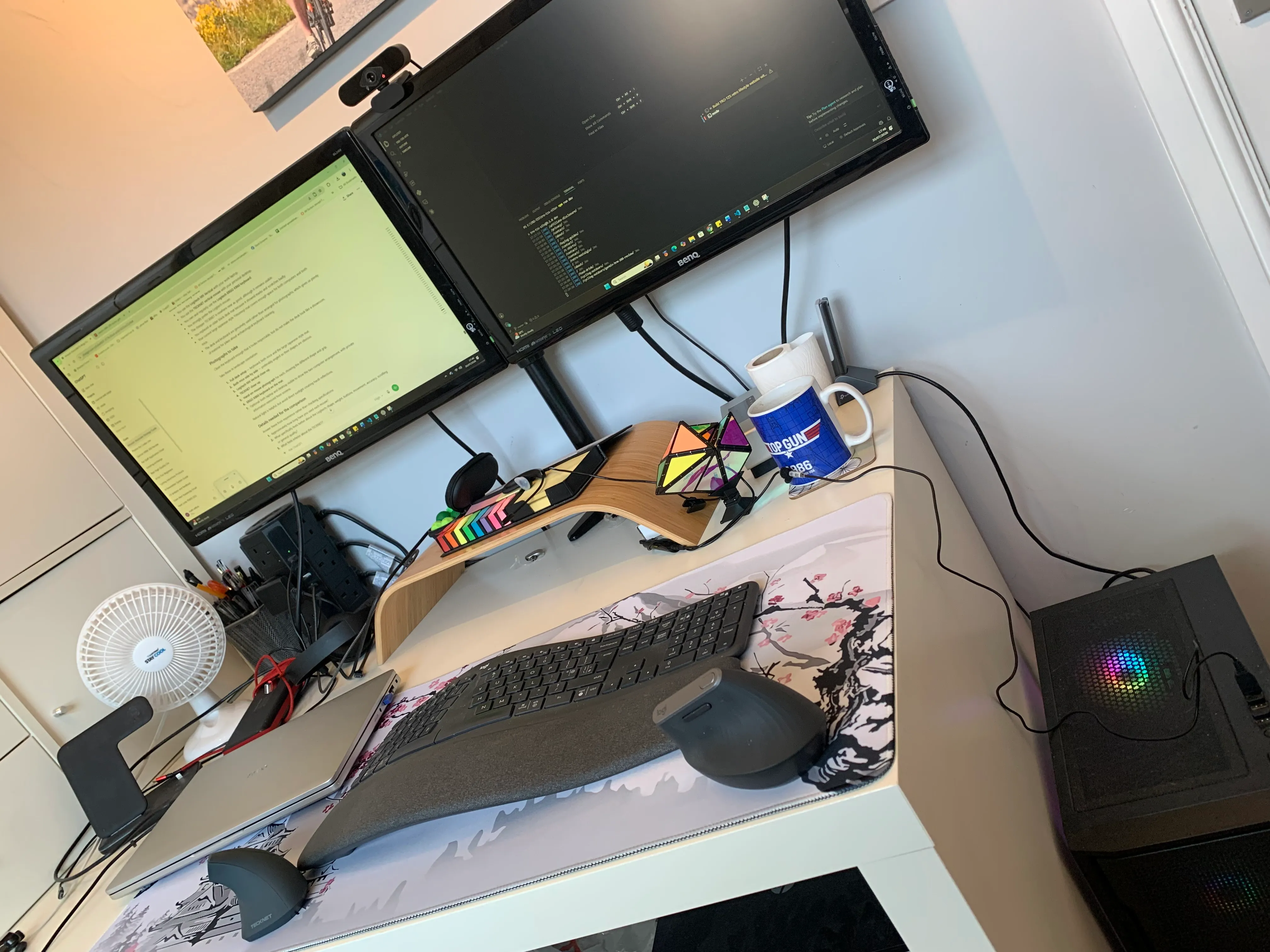
It has taken twenty-odd years of working at desks, several computers, countless cables and a printer that recognises no legitimate authority, but we have finally got there.
Overall rating: 5 out of 5